Using the Command Line to Batch Export Revizto Issue Tracker Data to XLSX
Revizto doesn’t strictly offer an API (yet) for connecting to its data. But you can use the command line to export an Excel file of all of the current issue tracker data. And you could schedule this export as a Windows Task. If you are in the habit of creating custom dashboards and connecting a whole lot of data together (as I am), then this could prove to be a pretty powerful way to access and share issue tracker data with the wider team. Further, it provides an opportunity for accessing model markup information even in a non-cloud-connected state
Here’s how to export from Revizto using the command line tool, called ReviztoConsole :
Get the Revizto Project ID by hovering over the project name in the Viewer:
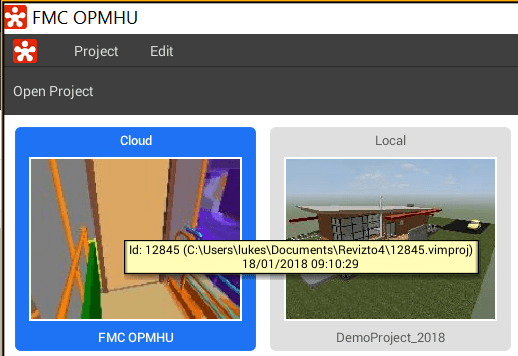
The command line syntax is like this (notice the project ID):
C:\Program Files\Vizerra LLC\Revizto4\Service>ReviztoConsole issues --project 12845 --export xlsx --outfile E:\temp\12845_issue_export.xlsx

Which looks like this in Explorer:

And the Excel file looks like this:

As you can see, a lot of the issue tracker fields are available here. The Snapshot and Comment fields also may include hyperlinks to a web-hosted version of the issue snapshot as well.
Note: you can use the command ReviztoConsole projects to show a list of your current project IDs and their parent folder name on your system.
Discussion
2 archived comments. New comments are not enabled.