How to Set Up a View Filter To Manage All Applicable Categories
When setting up View Filters in Revit, you can only select Filter parameters that are ‘common‘ among the Categories that you have ticked… If I haven’t lost you yet, here is a quick way to build a View Filter that uses a custom parameter (like a Shared Parameter) and works across all possible Categories.
- Firstly, add the Shared Parameter to all Categories using Manage – Project Parameters
- Create a new Filter
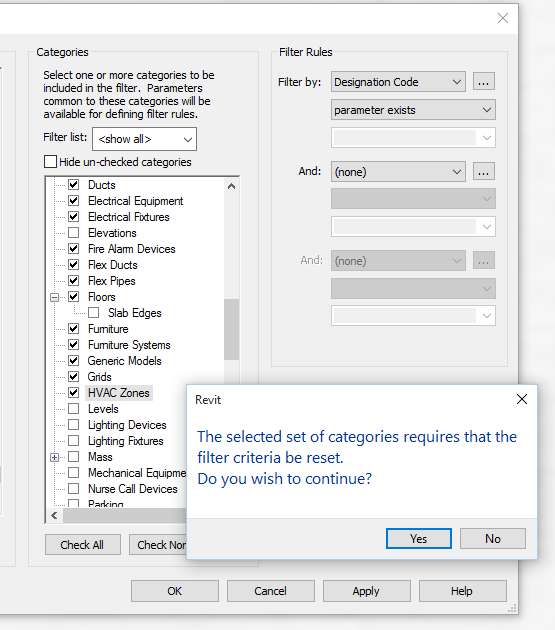
- Tick one of the top Categories in the list, and choose your desired Shared Parameter as a filter criteria
- Now, start ticking the categories to apply this to one by one…
- As you go down the list, Revit will occasionally give this prompt: “The selected set of categories requires that the filter criteria be reset“
- When you see this message, click No, and then move on to ticking the next Category
- In this way, you retain you Shared Parameter as a Filter Criteria for as many Categories as possible…
Once again, we just have to know What Revit Wants 🙂
Discussion
1 archived comments. New comments are not enabled.