Take the Guesswork out of Scaling an Image in Revit
After inserting an image in Revit, sometimes the X and Y (Raster Image Width and Height parameters) values of the image are somewhat “warped” and need to be adjusted to match your model background.
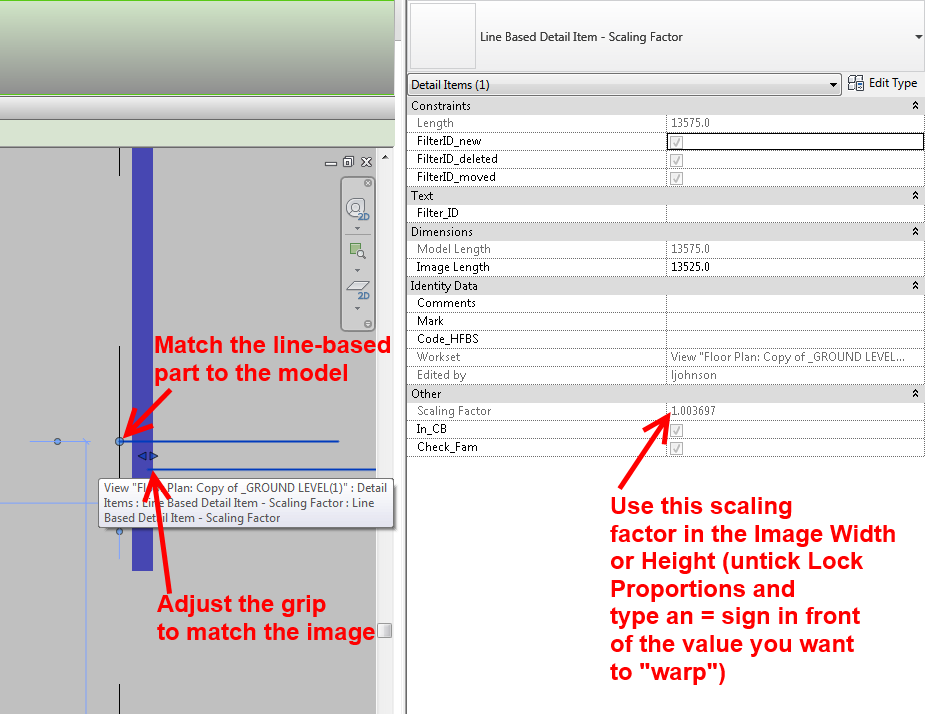
I created a Line Based Detail Item family that generates a scaling factor that can be used to properly warp the image aspect ratio.
Just untick Lock Proportions, type an = sign in front of the value that needs to be warped and then put an asterisk (meaning multiply) followed by the Scaling Factor that the family generates. It will look something like:
=34542.8*1.056
The image below explains it further:
Discussion
1 archived comments. New comments are not enabled.