HOW-TO View the Revit Database (2011 Secret #14)
This guide is for beginners who want to view the Revit database in 2011. I have previously posted about rvtmgddbg. This has been replaced in 2011 by RevitLookup. This is an API tool that allows you to view (‘Snoop’) the elements in the Revit database.
How do you set it up? Its quite simple really:
- Download this file (thanks to The Building Coder).
- Unzip the file to the C: drive (such that you have paths C:RevitLookupCS etc)
- Double click on the file “C:RevitLookupCSRevitLookup.csproj”, this will open in Visual Studio tools for Applications.
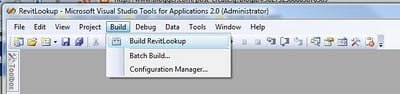
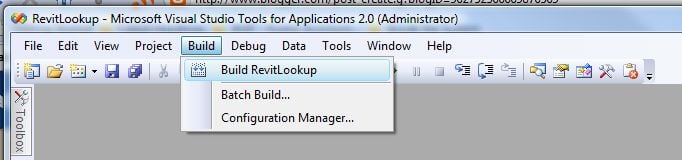
- Click on Build – Build RevitLookup (this creates the RevitLookup.dll file)
- Now, open the file “C:RevitLookupCSRevitLookup.addin” in Notepad.
- Replace this-
RevitLookup.dllwith this-
C:RevitLookupCSbinDebugRevitLookup.dll - Save the file.
- Now, copy the RevitLookup.addin file you just saved to the following location (depending on your OS):
For Vista
C:ProgramDataAutodeskREVITAddins2011For XP
C:Documents and SettingsAll UsersApplication DataAutodeskRevitAddins2011 - That’s it! You should now see the Revit Lookup menu on your Add-Ins ribbon:
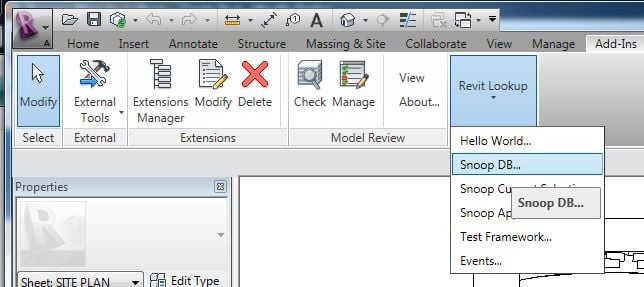
One of the simplest ways to use this tool is to select an Object, then use the ‘Snoop Current Selection’ option. Enjoy!
Discussion
4 archived comments. New comments are not enabled.
Delete the Reference to Microsoft.Office.Core and
Add it again => Add Reference, Tab COM, Select Microsoft Office 12 Object Library
Create a Reference Path to:
C:Program FilesAutodeskRevit Structure 2011Program
C:Program FilesCommon FilesMicrosoft SharedOFFICE12
could you find some solution to this