Compiling and using RevitLookup for Revit 2013 (and transferring single View Template using this free add-in)
This is using XP 64-bit with Revit 2013 Update 3, but similar principles will apply to other OS and software versions:
- Install Revit 2013 SDK if you don’t have it already, from here
- Install RevitAddinManager from SDKAdd-In Manager folder
- Open Sharpdevelop, you should be able to find it at:
C:Program FilesAutodeskRevit Architecture 2013ProgramSDAbin - Drag and drop RevitLookup.csproj to the Projects panel on the left
- Compile Revitlookup. Make sure to Add Reference Path (project / properties) to your Revit 2013 Program folder. Then click Build, Build Solution. I received a bunch of Warnings about obsolete classes and properties, but no errors.
- Open Revit and any project
- External Tools – Add-in Manager (automatic)
- Load the compiled RevitLookup.dll and then use the Save to Add-ins folder option
- Restart Revit
Now, to use RevitLookup to find the Element ID of a View Template and copy it to another project:
- Open a Project
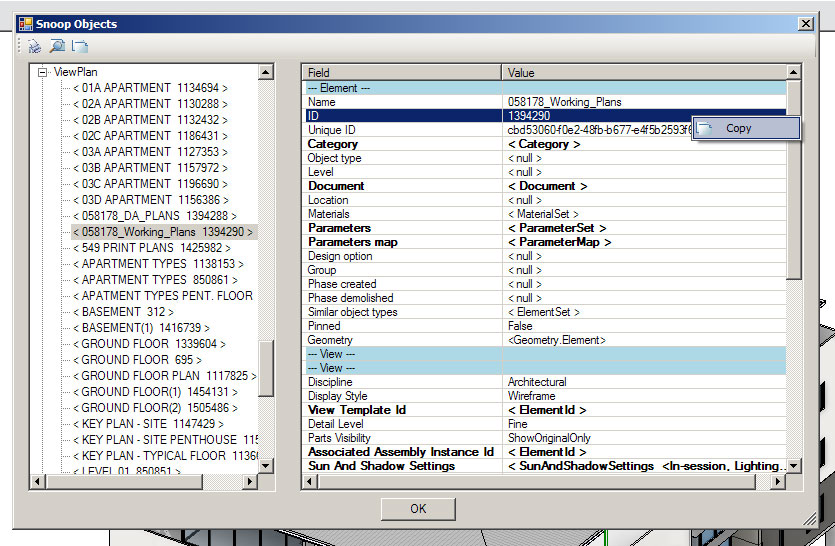
- Add-Ins, Revit Lookup, Snoop DB…
- Scroll down and select the appropriate View reference, ie. ViewPlan for a Template that was created from / for a Plan View
- When you select it, the Element ID will be shown on the right and you can copy it to Clipboard
- Select By ID, Paste
- Ctrl+C
- Switch to another project
- Paste – Aligned to Selected Level
- Done 🙂
Discussion
5 archived comments. New comments are not enabled.
link here
thanks