ShadowGrid: possibly the last Revit add-in you’ll ever need
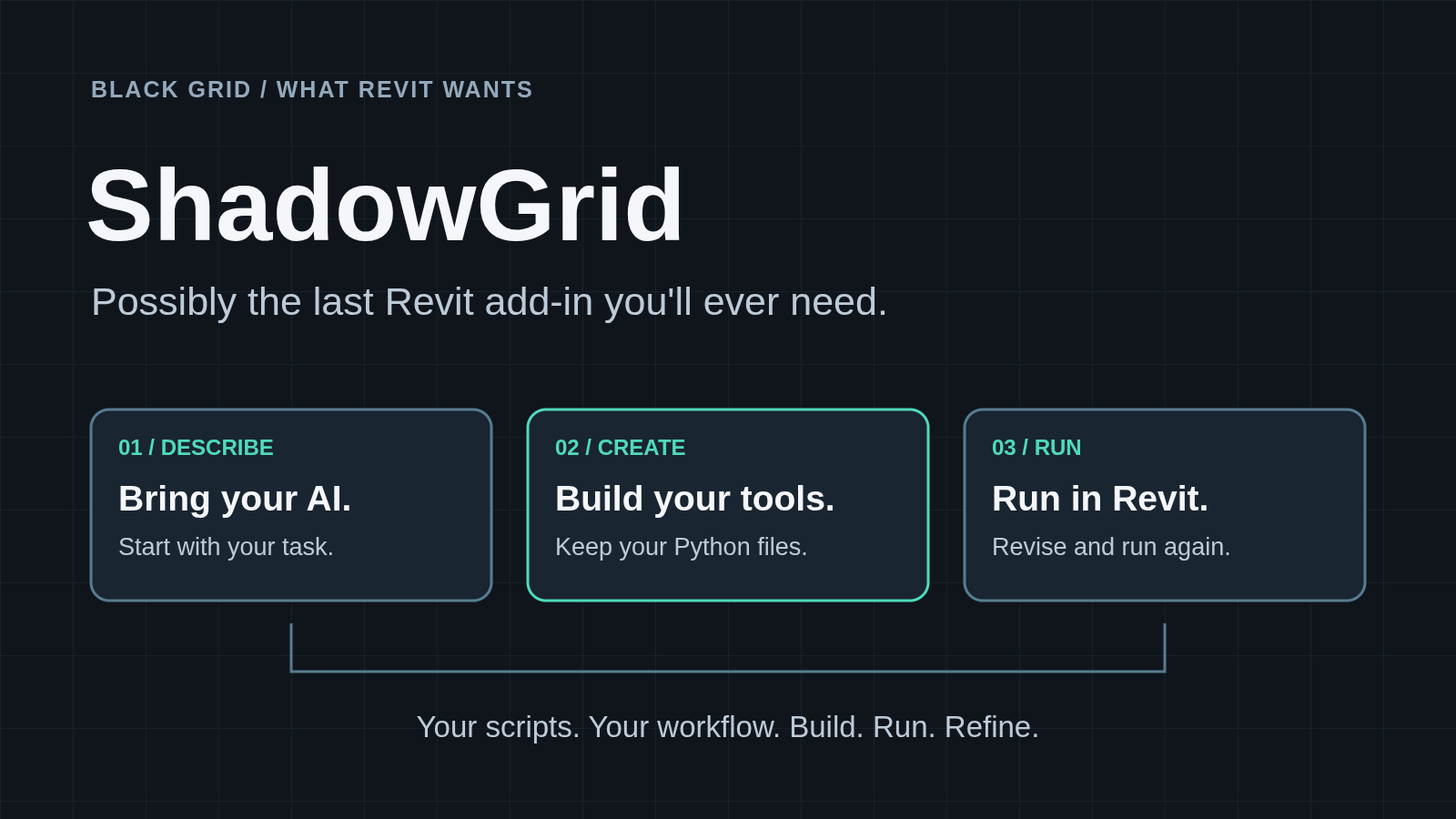
ShadowGrid could be the last Revit add-in you ever need. For the little tools I keep building, that is where I want to get to: install it once, then keep adding scripts as new jobs come up.
I have spent years building little tools to get repetitive Revit work out of the way. Usually it starts with something fairly simple: find these elements, check a parameter, or stop me doing the same task over and over.
AI has made writing the first version much faster. What I wanted was a simple way to take that code into Revit, run it, change it and run it again—while keeping the project open.
Meet ShadowGrid
ShadowGrid is a Revit add-in I have been building for running Python scripts. It includes the Python runtime and a ribbon where you pick a script and run it.
Use the AI assistant you already like. Ask it to help with a task, save the Python file, then use Refresh List and Run in Revit. When something needs changing, edit the script, save it and run it again. The project stays open.
One add-in, a growing library of tools
A tool might inspect elements, check parameters or handle a repetitive modelling task. The next little workflow can be another Python file in your folder. You can open it, change it and run it again while the project stays open.
That is the attraction for me, and what I mean by possibly the last Revit add-in you will ever need. Keep building the tools around the jobs you actually do. Each script still needs the right Revit API support, and you still need to review and test it.
Five real problems we have built scripts around
Copy the floor without duplicating the risers
Copying a typical floor can copy long vertical pipes onto risers that already exist. We built a selection filter that removes risers above a chosen height while retaining short fixture drops. The user can then copy the floor’s remaining services. The script changes the selection, not the model.
Show which fixtures still need pipework
In a hydraulic model with copy-monitored plumbing fixtures, we built a tool that tags only fixtures with a connected pipe. Unconnected fixtures stay untagged and can be selected for review, making the drawing itself a useful QA check.
Find the duplicates before deleting anything
Coincident penetrations and other elements can be difficult to spot. We built a tool that compares category, type, position and rotation, then shows a keep/delete report and offers to select the duplicates for inspection. That review step gives the user a way to check the proposed cleanup first.
Work with fixtures in the architect’s linked model
A different workflow kept fixtures in the architectural link, with pipes that were not physically connected to them. We built an adaptation that matches nearby vertical pipes to fixture zones, writes fixture codes onto the pipes and flags fixtures with no matching pipe. Editable matching rules help accommodate the families actually used on the job.
Populate thousands of elements without retyping the data
For facade handover data, we built a CSV-driven writer that matches asset identifiers to Revit elements, binds missing parameters and writes the values with a dry-run option and before/after reports. One recorded model run wrote 226,692 parameter values across 18,891 elements.
These examples come from project-specific scripts with their own testing histories. They show the kinds of workflows we have built around ShadowGrid. The founding licence covers the framework and starter examples; specialist scripts are separate deliverables.
Your scripts, your workflow
Your tools are ordinary Python files on your PC. They live outside the installer folder, so a framework update keeps your personal tools in place. Once you have a useful script, you can keep running it without making another AI request each time.
Framework licensing and signed updates are built in. You can check for an update from the add-in, download it and install after closing Revit. Routine updates retain the same Black Grid publisher identity, so you do not repeat the certificate trust setup for every release.
Give your AI the Revit instructions first
Your AI needs to know which Revit year you are using and how ShadowGrid runs a script. I have included a design guide covering that context, the objects available to your code, transactions and useful ways to report results.
There is also an optional guidance MCP connection for Claude, Codex or another compatible local AI client. MCP stands for Model Context Protocol. Ask your AI to read the ShadowGrid design rules for your Revit year before writing the script. The MCP supplies those instructions; you still review the code and run it from Revit.
If you are using an ordinary AI chat, open Build with your AI, select your Revit year and Copy design guide. Paste it into the chat before describing the job. That works too. The setup guide covers both routes, including the MCP configuration.
Get started
Get started with ShadowGrid here. I have put the downloads, one-time Windows trust setup, activation, MCP instructions and first-script walkthrough on that page.
Start with the included hello-world example, then ask your AI for a small, read-only tool. The walkthrough includes a prompt you can use, where to save the file and the exact steps to run it. Once that works, make a small change and run it again.
Try a task you can inspect easily. Review what a generated script does and test it on a suitable model copy. ShadowGrid runs ordinary Python with access to your Revit session; it does not turn untrusted code into a sandboxed application.
The founding licence is for the Revit framework and your own tools. Company cloud libraries, a creator marketplace, other desktop applications and a hosted ShadowGrid AI builder are directions I want to explore. They are future work, rather than features included in this launch.
The founding licence is A$249 AUD excluding GST for one named user and two registered devices, with perpetual use of covered v1 releases and 12 months of framework updates. Your own AI subscription is separate.
Get ShadowGrid
Buy a founding ShadowGrid licence. On the ShadowGrid page, choose Buy a founding licence to open secure Stripe Checkout. Applicable tax and your final total are shown before payment.
After checkout, save your licence key. Follow the Get started with ShadowGrid guide to complete the one-time Windows trust setup, install the add-in, activate in Revit, and create and run your first script. The guide includes the optional Claude/Codex MCP setup and the copy-and-paste route for an ordinary AI chat.
Prefer to try it first? Get started with the 14-day trial, including setup, optional MCP configuration and your first script.
Discussion
0 archived comments. New comments are not enabled.