3 Ways to Add Multi-Line text to Revit labels
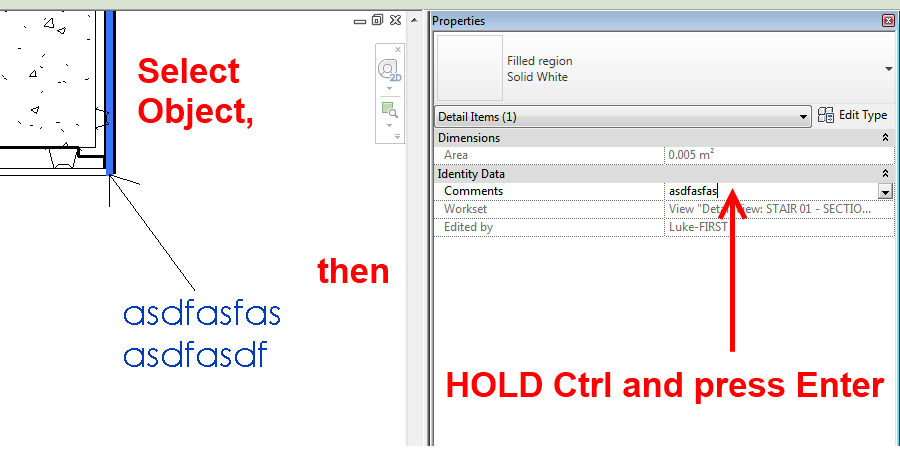
Many people know that you can add a carriage return (and thus create multi-line labels) in Revit by accessing a Properties entry box and hitting Ctrl+Enter:
Over at Revitez, another method was mentioned – namely, copy multiline text from Notepad into a Properties parameter box. This works well – and you can navigate between the lines in Revit using Up and Down arrow keys.
Finally, you can accomplish essentially the same thing by holding Alt + typing 0010 (then release Alt). This will also insert a well behaved carriage return into the parameter.
Some ideas via Revitez!:
Google Translate
In French http://revitez.blogspot.com/2011/07/texte-multi-ligne-dans-un-libelle.html
Discussion
7 archived comments. New comments are not enabled.
Name cannot contain any of the following characters:
: { } [ ] | ; < > ? ` ~
or **any of the non-printable characters**.